

[video]Gutterballs_US_640.flv[/video]
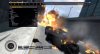
Rockstar Games sent over a selection of screenshots and gameplay video clips showcasing what can be done with the exclusive built-in video editor and recording tool found in the upcoming PC edition of Grand Theft Auto IV.
For the first-time ever in a GTA title, players will be able to make real-time edits and seamlessly export footage into WMV format movie files. You can even splice multiple clips together while adding in effects such as music, text and transitions. Once finalized, clips can be shared with friends and other gamers through Rockstar's online Social Club community.
Hit the jump for further details on this welcoming addition to the GTA series, along with screenshots and three other sample clips made with the video editor.
[video]Liberty_US_640.flv[/video]
[video]NikovsNiko_US_640.flv[/video]
[video]Peeper_US_640.flv[/video][blockquote2]Video Editor
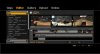
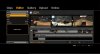
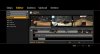
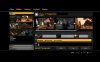
The all new Video Editor feature allows you to capture in-game footage, make real time edits and render those clips out as WMV movie files. The clips can also be spliced together into a video complete with post effects like music, text and transitions, and other features typically found in video editing suites. You can then share your video(s) with others to view and rate in Rockstar Games Social Club TV.
Clip Capture
At any time during the game (single or multiplayer), press the F2 key to dump a chunk of footage to your hard drive. Depending on how data intensive things are in the world at that time, the clip should be about 30 to 40 seconds long. Captured footage will be the action that occurs PRIOR to pressing F2. Note that if you have a slower machine, you also have the option to turn off this feature altogether.
Launching the Video Editor
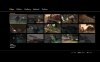
To launch the Video Editor, call it up using your in-game mobile phone. A prompt will let you know that any unsaved data will be lost, after which you jump into a separate menu to view and edit your clips. You arrive at this screen with the following choices:
Rockstar Games sent over a selection of screenshots and gameplay video clips showcasing what can be done with the exclusive built-in video editor and recording tool found in the upcoming PC edition of Grand Theft Auto IV.
For the first-time ever in a GTA title, players will be able to make real-time edits and seamlessly export footage into WMV format movie files. You can even splice multiple clips together while adding in effects such as music, text and transitions. Once finalized, clips can be shared with friends and other gamers through Rockstar's online Social Club community.
Hit the jump for further details on this welcoming addition to the GTA series, along with screenshots and three other sample clips made with the video editor.
[video]Liberty_US_640.flv[/video]
[video]NikovsNiko_US_640.flv[/video]
[video]Peeper_US_640.flv[/video][blockquote2]Video Editor
The all new Video Editor feature allows you to capture in-game footage, make real time edits and render those clips out as WMV movie files. The clips can also be spliced together into a video complete with post effects like music, text and transitions, and other features typically found in video editing suites. You can then share your video(s) with others to view and rate in Rockstar Games Social Club TV.
Clip Capture
At any time during the game (single or multiplayer), press the F2 key to dump a chunk of footage to your hard drive. Depending on how data intensive things are in the world at that time, the clip should be about 30 to 40 seconds long. Captured footage will be the action that occurs PRIOR to pressing F2. Note that if you have a slower machine, you also have the option to turn off this feature altogether.
Launching the Video Editor
To launch the Video Editor, call it up using your in-game mobile phone. A prompt will let you know that any unsaved data will be lost, after which you jump into a separate menu to view and edit your clips. You arrive at this screen with the following choices:
Attachments
-
 clipeditor1.jpg152 KB · Views: 91
 -
 clipeditor2.jpg160.9 KB · Views: 95
 -
 clipeditor3.jpg153.7 KB · Views: 94
 -
 Clips_section_good.jpg155.2 KB · Views: 96
 -
 editor3.jpg146.1 KB · Views: 89
 -
 editor4a.jpg133.3 KB · Views: 96
 -
 editor5a.jpg129.9 KB · Views: 86
 -
 Editor6.jpg161.5 KB · Views: 95
 -
 gallery.jpg163 KB · Views: 94