
Is your gamercard not showing your games/achievements or displaying out of date information? This is likely because you have privacy enabled on either Origin, Steam, Xbox Live, or PSN. Since these questions have been asked a few times before, here's a quick guide on how to modify your profile settings and enjoy uninterrupted tracking.
Note that the site is not immediately notified of any changes in privacy settings - you will either need to wait until the next profile scan or request a manual sync. Requesting a manual sync can be done from the Account page under Tools.
Apple GameCenter


Nintendo


Epic Games
GOG

Google Play


Origin

1. In Origin, click on your name in the bottom left, click show profile.
2. Click the orange button saying "edit on ea.com"
3. On the EA page, make sure your privacy is set to "everyone"
4. Make sure the Achievements and Origin Points boxed is ticked.
5. Click Save.
Steam
1. Navigate to Edit Profile on your Steam Community page
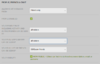
2. Ensure that a custom URL is set, as shown in the screenshot below. This should be the username you are sending us when creating a gamercard.

3. Again on the same page, navigate to My Privacy Settings and ensure that My profile and Game Details are set to Public, as shown in the screenshot below.
Additionally, ensure that the checkbox that says "Always keep my total playtime private even if users can see my game details" is NOT CHECKED - we need playtime data visible to track your profile properly.

4. That's it, your Steam profile should be accessible by our scanners now.
Xbox Live
1. Navigate to Privacy Settings from your main profile page on Xbox.com

2. There are a lot of options here, but the main settings you need to set under 'Others can' are below. Make sure other users can see your Xbox profile and see your game and app history.

3. That's it, your Xbox profile should be accessible by our scanners now.
PSN
1. Sign-in on the PlayStation.com website and navigate to Account Settings from the user dropdown menu.
2. Click Privacy Settings under the PlayStation Network subsection on this page, then under Gaming | Media make sure Gaming History is set to Public

3. That's it, your PSN profile should be accessible by our scanners now.
Overwatch
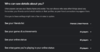
1. Open up the game client, navigate to the Options tab, and from there click "Social.”
2. Under the Social tab, there’s an option for "Career Profile Visibility" -- set this to Public, as shown in the screenshot below.
3. Once the correct option is chosen, close the menu and your settings will be saved. This will allow our scanners to see your profile.

Other
Q: I've changed my privacy settings, yet the site still has my profile marked as private.
This is normal, the site is not immediately notified of such changes. You will either need to wait until your profile is re-scanned (can take up to 4-6 hours) OR go to Edit Profile and click Save Settings to initiate a manual rescan.
Q: I've followed all the steps, yet still experience tracking issues.
Let us know in the feedback forum.
Note that the site is not immediately notified of any changes in privacy settings - you will either need to wait until the next profile scan or request a manual sync. Requesting a manual sync can be done from the Account page under Tools.
Apple GameCenter
- Navigate to the GameCenter home page under Settings -> GameCenter
- Make sure Game Activity -> Profile Privacy is set to "Everyone"
- In order to properly scan in your profile, we'll need to locate your nickname on a GameCenter leaderboard. Install and play the game Crossy Road: https://apps.apple.com/us/app/crossy-road/id924373886
- Playing for a short while will get you get a rank assigned on the Crossy Road leaderboard. View the leaderboard in-game and take note of your personal rank for the global "Score" leaderboard. The leaderboard can be accessed from the main menu screen -> Gear icon -> Leaderboards.
- As shown in the screenshot below, the user's rank highlighted in red is 75,987,354
- When entering in your GameCenter nickname on the site, include the above rank in your nickname, separated by a comma. For example, if your username is xsphere, you should format it like xsphere,75987354
- Be aware the leaderboard updates quite often so when you've taken note of your rank, enter it in the site quickly, otherwise the lookup may fail. If you've waited too long, check your rank again and update the number.
- If Crossy Road is not available in your region, you can follow the same steps above but with Apple Knight: https://apps.apple.com/hk/app/apple-knight/id1486055730
Nintendo
- Navigate to the User Settings section as shown in the screenshot below
- Select Play Activity Settings and ensure that the option "Display play activity to" is set to "All Users"
- That's it, this will make your profile visible to our scanners. Note that only the last 20 games played are shown in the Switch play log. In order to scan your entire library, you will need to launch any previously played games again.
Epic Games
- Navigate to the "My Achievements" page on Epic Games, which can be accessed from the user drop down menu.
- From this page, click the dotted button next to Privacy Level, and select Manage Privacy.
- Choose Public, then click the Save button to confirm the changes.
GOG
- While logged in on the GOG home page, hover over your username in the top navigation and click "Orders & Settings"
- Navigate to the "Privacy" section of this page
- Ensure the visibility of both your profile and game library is set to "All Visitors"
- Additionally, make sure the Profile enabled box is checked if it isn't already
- If you are still having issues, a screenshot is included below with the exact settings you should have enabled for proper tracking
Google Play
- Open up the Play Games app on your phone
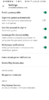
- Tap the menu icon at the top right corner of the screen and go to Settings. From here, make sure "Everyone" is set for the game activity option
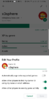
- Additionally, from your profile page in the app, click the Edit icon and ensure a Gamer ID is set. The Gamer ID is the only information you'll need to enter here to have your profile tracked properly.
- Some screenshots are included below that show exactly what options need to be enabled in case you are still having issues.
- If you're having difficulties with the site finding your profile, make sure you are entering in your Gamer ID that's set within the Play Games app, not your Google account email.
Origin
1. In Origin, click on your name in the bottom left, click show profile.
2. Click the orange button saying "edit on ea.com"
3. On the EA page, make sure your privacy is set to "everyone"
4. Make sure the Achievements and Origin Points boxed is ticked.
5. Click Save.
Steam
1. Navigate to Edit Profile on your Steam Community page
2. Ensure that a custom URL is set, as shown in the screenshot below. This should be the username you are sending us when creating a gamercard.
3. Again on the same page, navigate to My Privacy Settings and ensure that My profile and Game Details are set to Public, as shown in the screenshot below.
Additionally, ensure that the checkbox that says "Always keep my total playtime private even if users can see my game details" is NOT CHECKED - we need playtime data visible to track your profile properly.
4. That's it, your Steam profile should be accessible by our scanners now.
Xbox Live
1. Navigate to Privacy Settings from your main profile page on Xbox.com
2. There are a lot of options here, but the main settings you need to set under 'Others can' are below. Make sure other users can see your Xbox profile and see your game and app history.
3. That's it, your Xbox profile should be accessible by our scanners now.
PSN
1. Sign-in on the PlayStation.com website and navigate to Account Settings from the user dropdown menu.
2. Click Privacy Settings under the PlayStation Network subsection on this page, then under Gaming | Media make sure Gaming History is set to Public
3. That's it, your PSN profile should be accessible by our scanners now.
Overwatch
1. Open up the game client, navigate to the Options tab, and from there click "Social.”
2. Under the Social tab, there’s an option for "Career Profile Visibility" -- set this to Public, as shown in the screenshot below.
3. Once the correct option is chosen, close the menu and your settings will be saved. This will allow our scanners to see your profile.
Other
Q: I've changed my privacy settings, yet the site still has my profile marked as private.
This is normal, the site is not immediately notified of such changes. You will either need to wait until your profile is re-scanned (can take up to 4-6 hours) OR go to Edit Profile and click Save Settings to initiate a manual rescan.
Q: I've followed all the steps, yet still experience tracking issues.
Let us know in the feedback forum.
Attachments
Last edited:

