• Steam recently changed the default privacy settings for all users. This may impact tracking. Ensure your profile has the correct settings by following the guide on our forums.
  • If your profile is showing up as Not Ranked, please review our rules page and follow the appeal process detailed there.

Guide: How to Disable Privacy Settings on Origin, Steam, Xbox Live, PSN

Is your gamercard not showing your games/achievements or displaying out of date information? This is likely because you have privacy enabled on either Origin, Steam, Xbox Live, or PSN. Since these questions have been asked a few times before, here's a quick guide on how to modify your profile settings and enjoy uninterrupted tracking.

Note that the site is not immediately notified of any changes in privacy settings - you will either need to wait until the next profile scan or request a manual sync. Requesting a manual sync can be done from the Account page under Tools.

Apple GameCenter

  1. Navigate to the GameCenter home page under Settings -> GameCenter
  2. Make sure Game Activity -> Profile Privacy is set to "Everyone"
  3. In order to properly scan in your profile, we'll need to locate your nickname on a GameCenter leaderboard. Install and play the game Crossy Road: https://apps.apple.com/us/app/crossy-road/id924373886
  4. Playing for a short while will get you get a rank assigned on the Crossy Road leaderboard. View the leaderboard in-game and take note of your personal rank for the global "Score" leaderboard. The leaderboard can be accessed from the main menu screen -> Gear icon -> Leaderboards.
  5. As shown in the screenshot below, the user's rank highlighted in red is 75,987,354
  6. When entering in your GameCenter nickname on the site, include the above rank in your nickname, separated by a comma. For example, if your username is xsphere, you should format it like xsphere,75987354
  7. Be aware the leaderboard updates quite often so when you've taken note of your rank, enter it in the site quickly, otherwise the lookup may fail. If you've waited too long, check your rank again and update the number.
IMG_0586.png
IMG_0588.png


Nintendo
  1. Navigate to the User Settings section as shown in the screenshot below
  2. Select Play Activity Settings and ensure that the option "Display play activity to" is set to "All Users"
  3. That's it, this will make your profile visible to our scanners. Note that only the last 20 games played are shown in the Switch play log. In order to scan your entire library, you will need to launch any previously played games again.
img_4364-jpg.12446


img_4365-jpg.12444


Epic Games
  1. Navigate to the "My Achievements" page on Epic Games, which can be accessed from the user drop down menu.
  2. From this page, click the dotted button next to Privacy Level, and select Manage Privacy.
  3. Choose Public, then click the Save button to confirm the changes.

GOG
  1. While logged in on the GOG home page, hover over your username in the top navigation and click "Orders & Settings"
  2. Navigate to the "Privacy" section of this page
  3. Ensure the visibility of both your profile and game library is set to "All Visitors"
  4. Additionally, make sure the Profile enabled box is checked if it isn't already
  5. If you are still having issues, a screenshot is included below with the exact settings you should have enabled for proper tracking
Schermafbeelding_2026-01-27_155213.png


Google Play
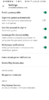
  1. Open up the Play Games app on your phone
  2. Tap the menu icon at the top right corner of the screen and go to Settings. From here, make sure "Everyone" is set for the game activity option
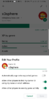
  3. Additionally, from your profile page in the app, click the Edit icon and ensure a Gamer ID is set. The Gamer ID is the only information you'll need to enter here to have your profile tracked properly.
  4. Some screenshots are included below that show exactly what options need to be enabled in case you are still having issues.
  5. If you're having difficulties with the site finding your profile, make sure you are entering in your Gamer ID that's set within the Play Games app, not your Google account email.
Screen Shot 2022-06-18 at 11.52.48 PM.png
Screen Shot 2022-06-18 at 11.55.07 PM.png


Origin

DGBPszg.jpg

1. In Origin, click on your name in the bottom left, click show profile.
2. Click the orange button saying "edit on ea.com"
3. On the EA page, make sure your privacy is set to "everyone"
4. Make sure the Achievements and Origin Points boxed is ticked.
5. Click Save.


Steam

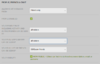
1. Navigate to Edit Profile on your Steam Community page
2. Ensure that a custom URL is set, as shown in the screenshot below. This should be the username you are sending us when creating a gamercard.


zLS.jpg


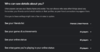
3. Again on the same page, navigate to My Privacy Settings and ensure that My profile and Game Details are set to Public, as shown in the screenshot below.

Additionally, ensure that the checkbox that says "Always keep my total playtime private even if users can see my game details" is NOT CHECKED - we need playtime data visible to track your profile properly.

Screenshot from 2018-08-27 22-24-00.png


4. That's it, your Steam profile should be accessible by our scanners now.


Xbox Live

1. Navigate to Privacy Settings from your main profile page on Xbox.com

1LS.jpg


2. There are a lot of options here, but the main settings you need to set under 'Others can' are below. Make sure other users can see your Xbox profile and see your game and app history.

3LS.jpg


3. That's it, your Xbox profile should be accessible by our scanners now.

PSN

1. Sign-in on the PlayStation.com website and navigate to Account Settings from the user dropdown menu.

2. Click Privacy Settings under the PlayStation Network subsection on this page, then under Gaming | Media make sure Gaming History is set to Public

Screen Shot 2022-04-27 at 12.10.48 PM.png


3. That's it, your PSN profile should be accessible by our scanners now.

Overwatch

1. Open up the game client, navigate to the Options tab, and from there click "Social.”

2. Under the Social tab, there’s an option for "Career Profile Visibility" -- set this to Public, as shown in the screenshot below.

3. Once the correct option is chosen, close the menu and your settings will be saved. This will allow our scanners to see your profile.

1fc8c5d9-0312-415b-a025-4819c5e869b0.png


Other

Q: I've changed my privacy settings, yet the site still has my profile marked as private.


This is normal, the site is not immediately notified of such changes. You will either need to wait until your profile is re-scanned (can take up to 4-6 hours) OR go to Edit Profile and click Save Settings to initiate a manual rescan.

Q: I've followed all the steps, yet still experience tracking issues.

Let us know in the feedback forum.
 

Attachments

  • Screenshot from 2018-09-02 14-20-38.png
    Screenshot from 2018-09-02 14-20-38.png
    43.1 KB · Views: 193,950
  • Screenshot_20180621-125503_Google Play Games.png
    Screenshot_20180621-125503_Google Play Games.png
    78.2 KB · Views: 80,911
  • Screenshot_20180621-125509_Google Play Games.png
    Screenshot_20180621-125509_Google Play Games.png
    83.2 KB · Views: 82,152
  • Screen Shot 2020-01-23 at 1.02.46 PM.png
    Screen Shot 2020-01-23 at 1.02.46 PM.png
    71.9 KB · Views: 197,918
Last edited:
Is your gamercard not showing your games/achievements or displaying out of date information? This is likely because you have privacy enabled on either Origin, Steam, Xbox Live, or PSN. Since these questions have been asked a few times before, here's a quick guide on how to modify your profile settings and enjoy uninterrupted tracking.

Note that the site is not immediately notified of any changes in privacy settings - you will either need to wait until the next profile scan or request a manual sync. Requesting a manual sync can be done from the Account page under Tools.

Apple GameCenter

  1. Navigate to the GameCenter home page under Settings -> GameCenter
  2. Make sure Game Activity -> Profile Privacy is set to "Everyone"
  3. In order to properly scan in your profile, we'll need to locate your nickname on a GameCenter leaderboard. Install and play the game Crossy Road: https://apps.apple.com/us/app/crossy-road/id924373886
  4. Playing for a short while will get you get a rank assigned on the Crossy Road leaderboard. View the leaderboard in-game and take note of your personal rank for the global "Score" leaderboard. The leaderboard can be accessed from the main menu screen -> Gear icon -> Leaderboards.
  5. As shown in the screenshot below, the user's rank highlighted in red is 75,987,354
  6. When entering in your GameCenter nickname on the site, include the above rank in your nickname, separated by a comma. For example, if your username is xsphere, you should format it like xsphere,75987354
  7. Be aware the leaderboard updates quite often so when you've taken note of your rank, enter it in the site quickly, otherwise the lookup may fail. If you've waited too long, check your rank again and update the number.
View attachment 17023View attachment 17024


Nintendo
  1. Navigate to the User Settings section as shown in the screenshot below
  2. Select Play Activity Settings and ensure that the option "Display play activity to" is set to "All Users"
  3. That's it, this will make your profile visible to our scanners. Note that only the last 20 games played are shown in the Switch play log. In order to scan your entire library, you will need to launch any previously played games again.
img_4364-jpg.12446


img_4365-jpg.12444


Epic Games
  1. Navigate to the "My Achievements" page on Epic Games, which can be accessed from the user drop down menu.
  2. From this page, click the dotted button next to Privacy Level, and select Manage Privacy.
  3. Choose Public, then click the Save button to confirm the changes.

GOG
  1. While logged in on the GOG home page, hover over your username in the top navigation and click "Orders & Settings"
  2. Navigate to the "Privacy" section of this page
  3. Ensure the visibility of both your profile and game library is set to "All Visitors"
  4. Additionally, make sure the Profile enabled box is checked if it isn't already
  5. If you are still having issues, a screenshot is included below with the exact settings you should have enabled for proper tracking
View attachment 19983

Google Play
  1. Open up the Play Games app on your phone
  2. Tap the menu icon at the top right corner of the screen and go to Settings. From here, make sure "Everyone" is set for the game activity option
  3. Additionally, from your profile page in the app, click the Edit icon and ensure a Gamer ID is set. The Gamer ID is the only information you'll need to enter here to have your profile tracked properly.
  4. Some screenshots are included below that show exactly what options need to be enabled in case you are still having issues.
  5. If you're having difficulties with the site finding your profile, make sure you are entering in your Gamer ID that's set within the Play Games app, not your Google account email.
View attachment 12197View attachment 12196

Origin

DGBPszg.jpg

1. In Origin, click on your name in the bottom left, click show profile.
2. Click the orange button saying "edit on ea.com"
3. On the EA page, make sure your privacy is set to "everyone"
4. Make sure the Achievements and Origin Points boxed is ticked.
5. Click Save.


Steam

1. Navigate to Edit Profile on your Steam Community page
2. Ensure that a custom URL is set, as shown in the screenshot below. This should be the username you are sending us when creating a gamercard.


View attachment 11064

3. Again on the same page, navigate to My Privacy Settings and ensure that My profile and Game Details are set to Public, as shown in the screenshot below.

Additionally, ensure that the checkbox that says "Always keep my total playtime private even if users can see my game details" is NOT CHECKED - we need playtime data visible to track your profile properly.

View attachment 9822

4. That's it, your Steam profile should be accessible by our scanners now.


Xbox Live

1. Navigate to Privacy Settings from your main profile page on Xbox.com

View attachment 11065


2. There are a lot of options here, but the main settings you need to set under 'Others can' are below. Make sure other users can see your Xbox profile and see your game and app history.

View attachment 11066

3. That's it, your Xbox profile should be accessible by our scanners now.

PSN

1. Sign-in on the PlayStation.com website and navigate to Account Settings from the user dropdown menu.

2. Click Privacy Settings under the PlayStation Network subsection on this page, then under Gaming | Media make sure Gaming History is set to Public

View attachment 11957


3. That's it, your PSN profile should be accessible by our scanners now.

Overwatch

1. Open up the game client, navigate to the Options tab, and from there click "Social.”

2. Under the Social tab, there’s an option for "Career Profile Visibility" -- set this to Public, as shown in the screenshot below.

3. Once the correct option is chosen, close the menu and your settings will be saved. This will allow our scanners to see your profile.

View attachment 9818

Other

Q: I've changed my privacy settings, yet the site still has my profile marked as private.


This is normal, the site is not immediately notified of such changes. You will either need to wait until your profile is re-scanned (can take up to 4-6 hours) OR go to Edit Profile and click Save Settings to initiate a manual rescan.

Q: I've followed all the steps, yet still experience tracking issues.

Let us know in the feedback forum.
Hey, I try to put steam, ea and ubisoft but I still get the error message. I follow the steps but it doesnt work.
 
Agreed, your Steam profile seems fine.
I tried creating a signature image, but couldn't, Exophase told me:
"Error: This user requested manual removal from the site for privacy reasons. If you are the original account holder, contact support to remove this flag."
Like it says; someone from the Exophase staff needs to manually add you back, so I would also mention your Ubisoft ID, could be the same issue.
 
Agreed, your Steam profile seems fine.
I tried creating a signature image, but couldn't, Exophase told me:
"Error: This user requested manual removal from the site for privacy reasons. If you are the original account holder, contact support to remove this flag."
Like it says; someone from the Exophase staff needs to manually add you back, so I would also mention your Ubisoft ID, could be the same issue.
oh okay, thanks fot the news !! Do u know how I can reach someone of the staff ? Thanks
 
They read the forum, so I'm guessing somebody will find our posts and fix your Steam after a few days at most. :)
 
@Malo_gdm I've reactivated your profiles now.

It worked, thank you! One more thing: I hid a few games on my GOG profile (like the screenshot below), but they are still showing up when others visit my profile. How can I fix this?

View attachment 20727

Is because the linked GOG account is not verified. It only applies profile changes while logged in if the account is not verified, since this way we ensure only the original owner can edit profile data.

Unfortunately, we don't have a user option for verifying GOG accounts currently. For now, I manually set your profile to verified.
 
Hello! I updated my EA account privacy settings to "Everyone" and waited 48 hours, but I still get an error when trying to link my account. My EA ID is "JECE-QC".

I shouldn't have any achievements, but I still want my profile linked. Thanks!
 
Hello! I updated my EA account privacy settings to "Everyone" and waited 48 hours, but I still get an error when trying to link my account. My EA ID is "JECE-QC".

I shouldn't have any achievements, but I still want my profile linked. Thanks!
Are you sure that is your EA ID?

I can't find you in the EA app.

I know certain platforms won't sync without an achievement, I can't remember if EA was one of them.
 

Attachments

  • Screenshot 2026-06-23 031459.png
    Screenshot 2026-06-23 031459.png
    1.2 MB · Views: 1
Are you sure that is your EA ID?

I can't find you in the EA app.

I know certain platforms won't sync without an achievement, I can't remember if EA was one of them.

Yeah, that's my EA ID! (without the quotation marks, of course)

I just used the 'copy' feature under "Add new friends" in the EA app and get this: JECE-QC
 
Yeah, that's my EA ID! (without the quotation marks, of course)

I just used the 'copy' feature under "Add new friends" in the EA app and get this: JECE-QC
You could try following the process I mentioned in this thread to use your email instead: https://forums.exophase.com/threads/ea-link-account-issue.73176/post-293418

There's a bug with EA's player lookup feature. When this happens other users can't even add you as a friend in the desktop client. We've reported the issue to them as have other users but still seems like it's not been fixed unfortunately.
 
You could try following the process I mentioned in this thread to use your email instead: https://forums.exophase.com/threads/ea-link-account-issue.73176/post-293418

There's a bug with EA's player lookup feature. When this happens other users can't even add you as a friend in the desktop client. We've reported the issue to them as have other users but still seems like it's not been fixed unfortunately.

Huh, it worked! It seems like my EA ID now populates under my Exophase account settings. If I finally manage to update my e-mail address with EA will my account stay linked here?
 
Last edited:
Huh, it worked! It seems like my EA ID now populates under my Exophase account settings. If finally manage to update my e-mail address with EA will my account stay linked here?
Yes, it's safe to change the email after your account has been linked.
 
Back
Top